

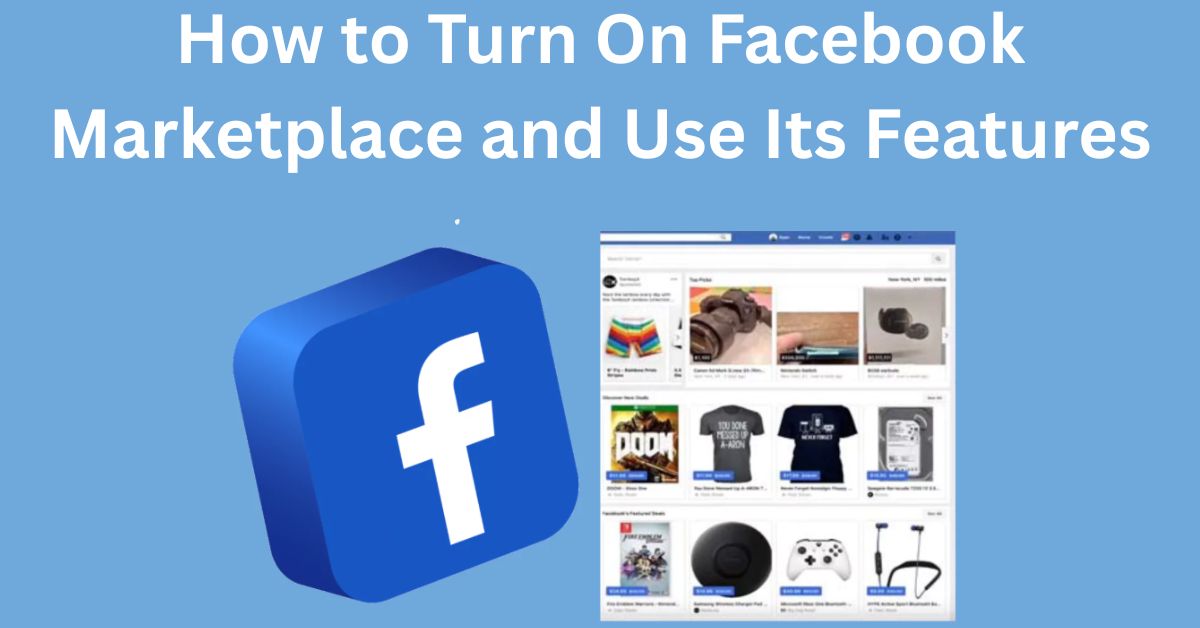
Facebook Marketplace has become a practical way for people to buy and sell products within their local communities. Instead of visiting several stores or creating a separate online shop, you can use Facebook to discover items, compare listings, communicate with sellers, and advertise products you want to sell.
For many users, the process seems straightforward until the Marketplace option is missing. You may open Facebook and discover that the familiar Marketplace icon is nowhere to be found. In other cases, you may see Marketplace but aren’t sure how to use its features effectively.
If you’re searching for how to turn on Facebook Marketplace, the first thing to understand is that Marketplace is generally integrated into Facebook rather than operating as a separate application. There may not be a universal switch that manually activates it for every account. Access can depend on factors such as account eligibility, location, age, account status, and Facebook’s current interface.
Once Marketplace is available to you, however, using it is relatively simple. You can search for products, browse categories, adjust location preferences, contact sellers, save listings, and create your own listings where selling features are available.
This guide explains how to access Facebook Marketplace, what to do when it is missing, and how to make the most of its major features.
Facebook Marketplace is a buying-and-selling feature available through Facebook. It allows users to discover products listed by other people and, where supported, create listings for items they want to sell.
Marketplace can be useful for both buyers and sellers.
A buyer might use it to search for furniture, electronics, vehicles, clothing, appliances, books, or household products. A seller can use it to reach people who are interested in purchasing items within a particular area.
One major advantage is the ability to search for products based on location. This can be especially useful when you’re looking for large items that would be difficult or expensive to ship.
This is an important point for anyone searching for a “Facebook Marketplace app.”
Marketplace is generally integrated into the main Facebook experience. You normally don’t need to download a separate official Marketplace application just to access the feature.
Instead, you can use the official Facebook application on your mobile device or access Facebook through a supported web browser.
Be careful with websites or applications claiming that you must download an unofficial “Marketplace app” to unlock the feature. Avoid entering your Facebook password into unfamiliar services.
There isn’t necessarily a single activation button that forces Marketplace to appear on every Facebook account. If Marketplace is available to you, you can usually access it directly through Facebook.
Follow these steps.
Step 1: Open the Facebook App
Launch the official Facebook application on your Android phone or iPhone.
Make sure you are signed into the account you want to use.
If you don’t have the latest version of Facebook, check your device’s official app store for an available update.
Step 2: Open the Facebook Menu
Look at the navigation area within Facebook.
Depending on your device and the current version of Facebook, Marketplace may appear as one of your shortcuts.
If you don’t see it immediately, open the main Menu and look through the available features.
Step 3: Select Marketplace
If Marketplace is available on your account, select the Marketplace option.
The Marketplace homepage should open, allowing you to browse available listings.
The exact position of the icon can change because Facebook periodically modifies its interface.
Therefore, don’t assume that Marketplace has disappeared simply because the icon isn’t located in the same place as it was previously.
You can also use Facebook Marketplace from a computer where the feature is available.
Open Facebook using a supported web browser and sign into your account.
Look through the Facebook navigation options for Marketplace.
Using Marketplace on a computer can be convenient when you want to examine multiple listings, upload photographs from your computer, or manage longer product descriptions.
The available options may differ slightly between desktop and mobile.
Sometimes Marketplace doesn’t appear even after you’ve checked the Facebook Menu.
Don’t immediately assume that you need a new Facebook account.
Several factors can affect Marketplace access.
Check Your Facebook App
First, make sure your Facebook application is updated.
An outdated application can sometimes cause interface problems or prevent features from displaying correctly.
After updating Facebook, close the application and open it again.
Check Your Account Eligibility
Marketplace availability can depend on account-related factors.
If your account has certain restrictions or doesn’t meet applicable eligibility requirements, Marketplace may not be available.
Check Facebook notifications or account status information if you believe your access has been restricted.
Check Your Location
Marketplace availability can vary by region.
If the feature isn’t available in your location, changing your application settings won’t necessarily make it appear.
This is one reason why another Facebook user may have Marketplace while you don’t.
Check the Facebook Menu Again
Facebook regularly changes its interface.
A feature that previously appeared as a shortcut may later move into the Menu or another navigation area.
Before assuming Marketplace has been removed from your account, look through the current Menu carefully.
Restart the App
Temporary application problems can sometimes be resolved by closing Facebook completely and reopening it.
You can also restart your smartphone if the problem continues.
Once you have access, Marketplace offers several useful functions.
1. Search for Products
The search tool is one of the most useful features.
Instead of scrolling through hundreds of listings, type the exact product you’re looking for.
For example, you could search for:
-
Office desk
-
Used refrigerator
-
Smartphone
-
Dining table
-
Children’s bicycle
-
Laptop
-
Shoes
-
Washing machine
Specific searches generally make it easier to identify relevant listings.
You can also explore products through available categories.
Depending on your location and the current Marketplace interface, categories may include areas such as:
-
Electronics
-
Vehicles
-
Home and garden
-
Clothing
-
Family
-
Sports equipment
-
Hobbies
-
Entertainment
Categories are useful when you aren’t searching for one particular product.
You might discover something useful simply by browsing.
Location is particularly important on Facebook Marketplace.
If you’re buying locally, you probably don’t want to spend hours traveling to collect a product.
Use available location and distance settings to find listings that are reasonably close to you.
For large products such as sofas, wardrobes, tables, and refrigerators, nearby listings can be more practical because transportation may be complicated.
Price filters can help you stay within your budget.
If you’re searching for an inexpensive item, set a maximum price where the feature is available.
You can also compare multiple listings before making a decision.
Don’t automatically choose the cheapest product. Examine the condition, specifications, seller information, and location as well.
If Marketplace provides a save option for a listing, use it when you find an item you may want to review later.
Saving listings can be useful when you’re comparing several products.
Instead of searching for the same item repeatedly, you can return to the listing later.
When you find an item that interests you, you can communicate with the seller through Facebook’s available messaging features.
Before agreeing to a transaction, ask relevant questions.
For example:
“Is this item still available?”
“What condition is it in?”
“Are there any defects I should know about?”
“Where is the item located?”
Good communication can prevent misunderstandings.
If you have something you want to sell, Marketplace can also help you advertise it.
Look for the option to create a new listing or sell an item.
Depending on the available features, you’ll typically need information such as:
-
Product photographs
-
Product title
-
Price
-
Category
-
Condition
-
Description
-
Location
Take your time when creating the listing.
A clear and accurate listing can attract more serious buyers.
Your product title should be specific.
Instead of writing:
“Phone for sale”
you could write:
“Samsung Galaxy Smartphone, 128GB, Good Condition”
The second version tells potential buyers more immediately.
Your description should explain the product’s condition, age, features, accessories, and any known problems.
If something is damaged, don’t hide it.
Honest descriptions help buyers make informed decisions and can reduce disagreements after a transaction.
Photography can make a major difference to a listing.
Use clear photographs of the actual item you’re selling.
Take several pictures from different angles.
For example, a furniture listing might include:
Use reasonable lighting and keep the product visible.
Avoid photographs that deliberately hide defects.
Pricing should reflect the actual value and condition of your product.
Search Marketplace for similar products and compare their prices.
Consider:
-
Brand
-
Model
-
Age
-
Condition
-
Features
-
Demand
-
Location
If an item is used, don’t price it as though it were brand new.
At the same time, an extremely low price can attract suspicion.
Aim for a realistic price that reflects the product’s current condition.
Marketplace connects you with people you may not know personally, so safety should always be part of the process.
Inspect Products
If you’re buying a physical product locally, inspect it before completing the transaction when practical.
For electronics, confirm that the device works.
For furniture, check its structure.
For vehicles or expensive products, conduct additional research and verification before committing.
Avoid Suspicious Payment Requests
Be cautious if someone pressures you to use an unusual payment method or sends an unfamiliar payment link.
Don’t share your banking credentials, passwords, or security codes.
Also, don’t rely solely on screenshots as proof that someone has paid you.
Verify important transactions independently.
Deceitful people can use attractive listings to pressure people into making rushed decisions.
Be cautious if someone:
-
Offers an unrealistic bargain
-
Pressures you to pay immediately
-
Requests gift cards
-
Asks for security codes
-
Sends suspicious links
-
Claims payment has been made without confirmation
-
Requests unnecessary personal information
-
Changes the transaction terms unexpectedly
If something feels wrong, stop the transaction.
You can also use Facebook’s available reporting options for suspicious listings or accounts.
When buying or selling locally, choose a safe meeting arrangement.
For small products, a public location can be appropriate when practical.
For large items that require property access, consider bringing another person.
Tell someone you trust where you’re going and when you expect to return.
Don’t share more personal information than necessary.
Simply having access to Marketplace doesn’t guarantee good results.
You can improve your experience by developing a consistent strategy.
If You’re Buying:
-
Search using specific keywords.
-
Compare multiple listings.
-
Check product condition.
-
Research expensive products.
-
Use location filters.
-
Ask questions before agreeing.
-
Avoid rushed transactions.
If You’re Selling:
-
Use clear photographs.
-
Write accurate descriptions.
-
Choose a realistic price.
-
Mention defects.
-
Respond to serious buyers.
-
Follow applicable Marketplace rules.
-
Keep communication clear.
Learning how to turn on Facebook Marketplace and use its features is easier once you understand that Marketplace is generally part of Facebook rather than a separate application. If the feature is available to your account and location, you can usually access it by opening Facebook and locating Marketplace through the navigation area or Menu.
Once you’re inside Marketplace, you can search for products, explore categories, adjust location and price preferences, compare listings, contact sellers, save interesting products, and create your own listings where selling features are available.
If Marketplace doesn’t appear, don’t rush to download an unfamiliar application or create another account. Start by updating Facebook, checking the Menu, reviewing your account status, considering regional availability, and troubleshooting basic application problems.
Whether you’re buying or selling, use Marketplace carefully. Research products, communicate clearly, protect your personal information, verify transactions, and use sensible safety measures when meeting other users. With the right approach, Facebook Marketplace can be a convenient way to discover products, sell unwanted belongings, and connect with buyers and sellers in your local community.