

Clients don’t always send paperwork neatly organized. Sometimes, they send one large scanned PDF containing dozens… or even hundreds of separate documents.
Invoices. Receipts. Bank statements. Bills. Supporting documentation.
And before you can organize or process any of it, someone has to open that massive PDF, work through it page by page, figure out where one document ends and another begins, and manually split everything into individual files.
It’s a tedious, time-consuming task that can quickly add up… especially when you’re dealing with large client uploads.
But what if your PDF could figure out where each document begins and ends for you?
That’s exactly what Smart Split PDF in LedgerDocs is designed to do. Using LedgerDocs’ proprietary document intelligence models, Smart Split PDF automatically identifies individual documents within a combined PDF and separates them for you.
What Is an Automatic PDF Splitter?
A PDF splitter is a tool that divides a PDF into multiple files or separates specific pages from a larger document.
For example, you might have a 50-page PDF and want to:
-
Extract certain pages into a new PDF
-
Split a PDF into multiple files
-
Separate pages into individual documents
-
Break a PDF into smaller sections
Traditional PDF splitters are useful when you already know where you want to make the split.
But what happens when you don’t know where the document boundaries are?
That’s where an intelligent PDF splitter can make a difference.
Instead of simply splitting a PDF based on page numbers, Smart Split PDF uses LedgerDocs’ proprietary document intelligence models to identify where individual documents begin and end.
Split PDF vs. Smart Split PDF: What’s the Difference?
While both features can split PDFs, they solve two different problems.
Split PDF: You Choose the Page Breaks
The regular Split PDF function is useful when you already know exactly how you want to divide a document.
For example, if you have a 20-page PDF and know that pages 1–5 belong together, pages 6–10 are another document, and pages 11–20 are a third, you can manually define those sections.
You decide where the PDF gets divided.
Smart Split PDF: Let LedgerDocs Find the Document Breaks
Smart Split PDF is designed for a different situation.
When a client sends you one large PDF containing multiple documents, you may not know which pages belong together or it would be too time consuming to handle it manually. Smart Split PDF uses document intelligence to analyze the file and identify the individual documents within it.
LedgerDocs helps determine where one document ends and another begins.
A simple way to think about it:
Split PDF puts you in control of the page breaks. Smart Split PDF helps you find the document breaks.
That can be especially useful when working with large client scans containing dozens, or even hundreds—of pages.
How to Access Smart Split PDF in LedgerDocs
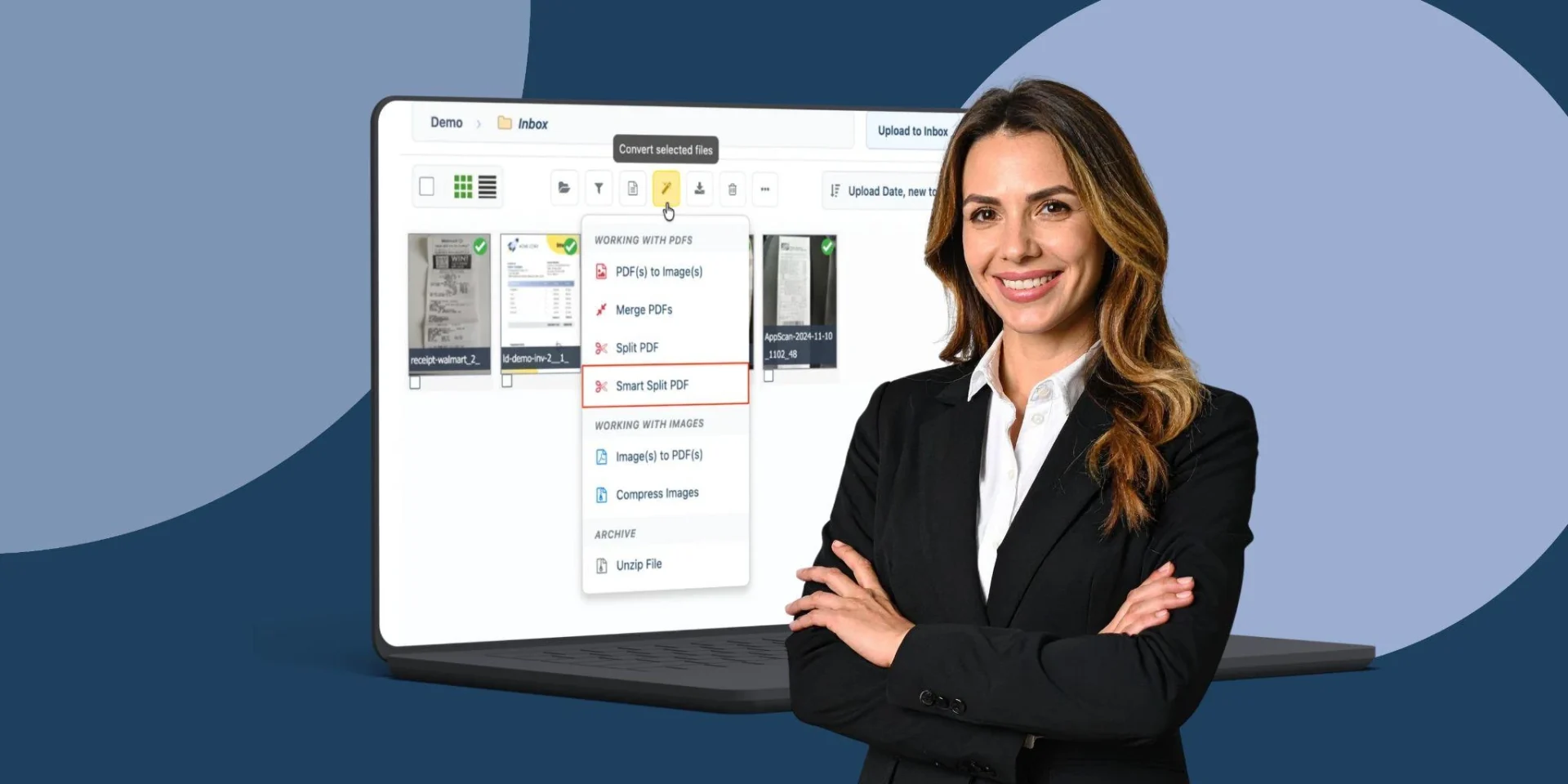
Using Smart Split PDF starts right from your LedgerDocs Inbox.
1. Select the PDF
In your LedgerDocs Inbox, select the PDF you want to split.
2. Click the Magic Wand
Once your document is selected, click the magic wand icon in the document toolbar.
3. Choose Smart Split PDF
From the menu, find Working With PDFs and select Smart Split PDF.
From there, LedgerDocs can analyze the combined PDF and identify the separate documents inside it.
No need to manually determine every page break first.

Turn One Large Client PDF Into Individual Documents
Imagine receiving a 200-page scan from a client.
Instead of opening the PDF and manually reviewing page after page to determine whether you’re looking at an invoice, receipt, statement, or another supporting document, Smart Split PDF can help identify the individual documents contained within the file.
What started as one large PDF can become a collection of separate documents that are much easier to manage.
This can be particularly helpful when clients send:
-
Multiple invoices in one PDF
-
Scanned receipts
-
Bank statements
-
Bills and vendor documents
-
Supporting documentation
-
Mixed batches of financial paperwork
Rather than manually breaking up the PDF file pages, Smart Split PDF is designed to recognize the documents themselves.
How Smart Split PDF Makes Document Processing Easier
For bookkeeping and accounting teams, separating documents is often just the first step.
Once a large PDF has been broken apart, the individual documents still need to be organized, processed, and connected to the right financial records.
Automating the initial separation can help reduce the amount of manual document handling involved.
Spend Less Time Reviewing PDFs
Instead of manually inspecting every page of a large client scan, Smart Split PDF can help identify document boundaries automatically.
Keep Documents Organized
Individual documents are easier to sort, organize, review, and process than one oversized PDF.
Handle Large Client Uploads More Efficiently
Whether you’re dealing with dozens of documents or a much larger client scan, automatically separating the file can make the next steps much easier.
What If You Only Need to Separate One Page From a PDF?
Not every PDF needs intelligent document separation.
If you simply need to save one page of a PDF separately or extract a specific range of pages, a traditional PDF splitter may be all you need.
For example, you might want to take page 7 from a 20-page PDF and save it as its own file.
That’s different from receiving a large PDF where you don’t know which pages belong to which documents.
Smart Split PDF is built for the second scenario.
It helps answer the question:
“Where are the individual documents in this PDF?”
rather than simply:
“Which page numbers do I want to extract?”
Stop Manually Splitting Client PDFs
A large client PDF shouldn’t have to become a large manual task.
Instead of spending time reviewing, separating, and organizing every page yourself, Smart Split PDF in LedgerDocs helps automatically identify and separate the individual documents within a combined PDF.
Whether you’re looking for a PDF splitter, a way to automatically split a PDF into multiple files, or a smarter way to handle large client document uploads, Smart Split PDF can help simplify the process.
Select your document. Click the magic wand. Choose Smart Split PDF.
And let LedgerDocs do the document sorting for you.
Try Smart Split PDF in LedgerDocs
Turn large, combined PDFs into organized, individual documents, without the manual page-by-page work. Try LedgerDocs Today!
PDF Splitter FAQs
How do I split a PDF into separate files?
If you know which pages belong together, you can use a PDF splitter to divide the document based on page ranges. In LedgerDocs, the Split PDF feature lets you choose where the document should be divided.
How do I separate pages in a PDF?
You can separate specific pages from a PDF by selecting the pages you want to extract and saving them as a new PDF. If you’re working with a large scan containing multiple documents, Smart Split PDF can help identify the individual documents automatically.
How do I split a PDF file into separate PDF files?
A PDF splitter can divide one PDF into multiple PDF files based on selected page ranges. If the document contains multiple invoices, receipts, statements, or other documents and you don’t know the page boundaries, Smart Split PDF can automatically identify them.
What is a PDF separator?
A PDF separator is a tool that divides a larger PDF into smaller, individual PDF files or separates specific pages from a document. LedgerDocs’ Smart Split PDF takes this a step further by identifying document boundaries automatically.