Zenphoto is a handy CMS that allows you to build a gallery-based website. The platform is easy to use and has many features that allow you to manage your online gallery in numerous ways.
Zenphoto comes as a free feature with each AwardSpace hosting plan, and you can use it right after you register for any of our plans.
In this article, we share how to install Zenphoto and start working on your gallery website immediately.
How to Install Zenphoto
You can install Zenphoto on all the AwardSpace hosting services—free web hosting, shared hosting, and premium plans such as Semi-Dedicated Hosting and VPS hosting.
Each of the AwardSpace hosting plans is specially tailored to run Zenphoto smoothly, so you will benefit from optimal performance regardless of which plan you choose for your project.
Read: How to Choose the Best Web Hosting Plan for Your Site
To install Zenphoto, you need to sign up for an AwardSpace hosting plan. If you are not sure which plan is right for you, then simply register for the AwardSpace free plan and use it for your project until you feel the need to upgrade to a more robust hosting service.
After you register, log in to the AwardSpace hosting control panel. From there, you can browse and install various CMS platforms, including Zenphoto.
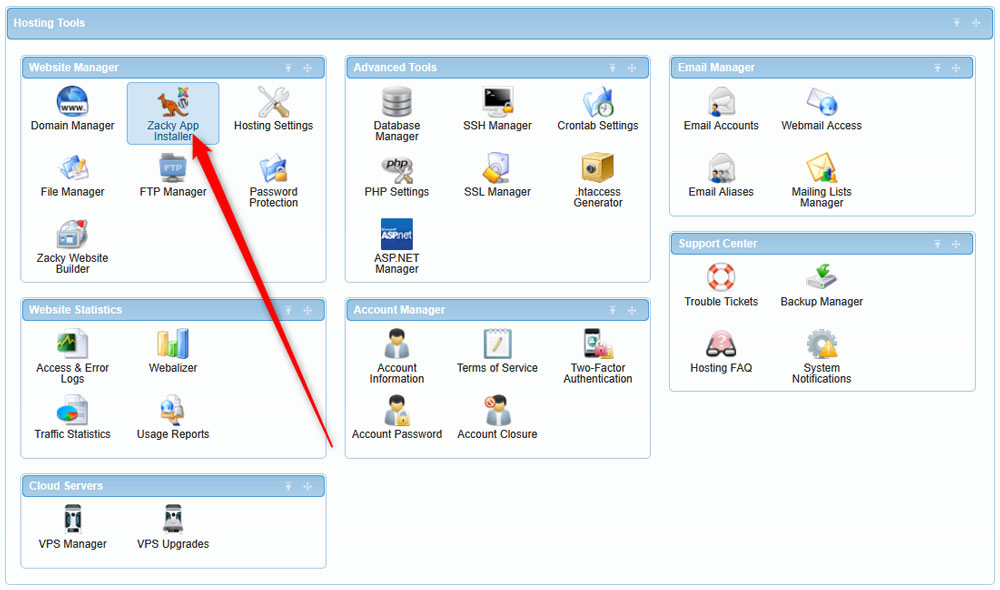
After you enter the hosting panel, click on the Zacky App Installer icon in the Website Manager box:
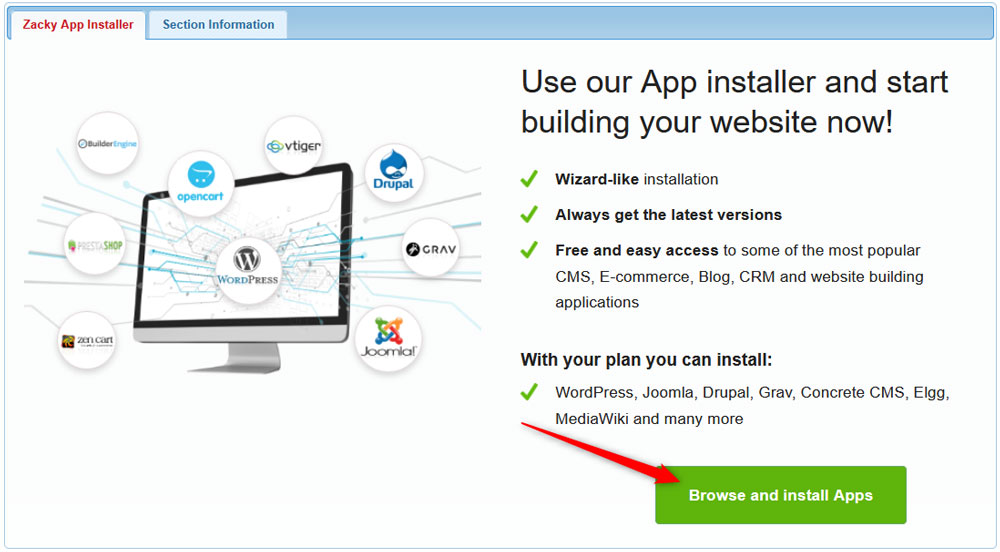
After you click the Zacky App Installer, a new page will open – once you see it, click on Browse and Install Apps:
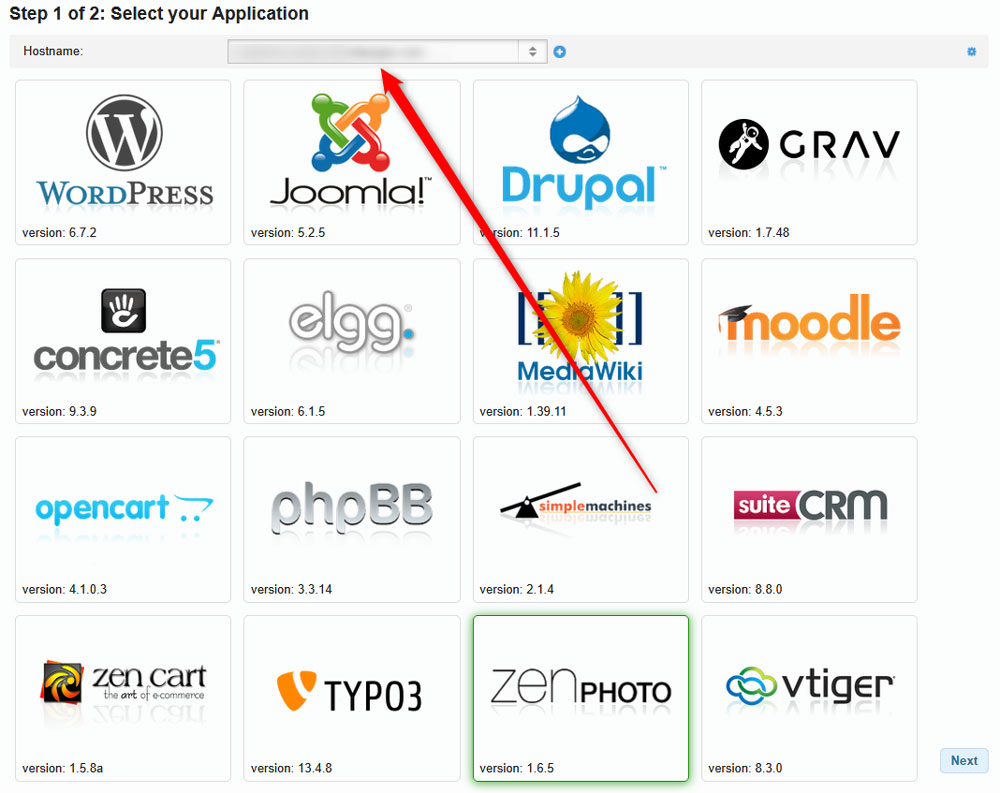
Then, select a domain name that you will be using with your Zenphoto project:
Keep in mind that to be able to install Zenphoto, you need to register a domain name. Here’s how:
How to Register a Domain
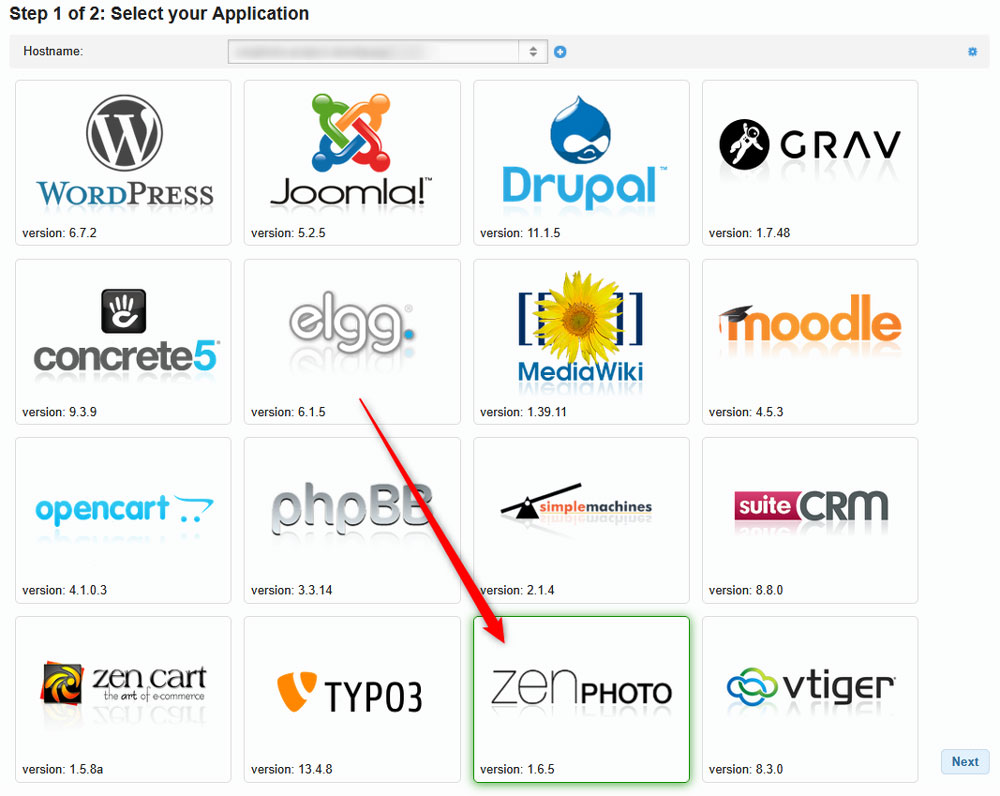
Once you select a domain name for your Zenphoto project, click on the CMS’s icon:
Then, you will be asked to choose a username, password, and email for your Zenphoto installation. Remember these credentials – you will use them each time you have to log in to the Zenphoto admin panel:
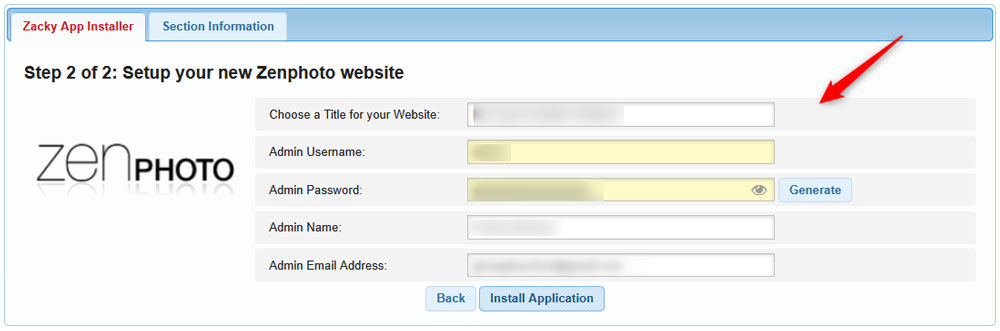
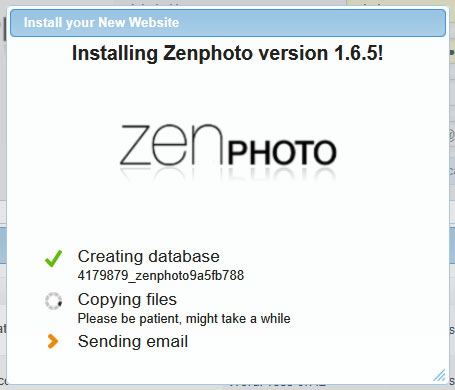
Once you fill in these credentials, follow the instructions and install the platform. The process takes a few minutes:
Once the process is completed. A confirmation window will appear:
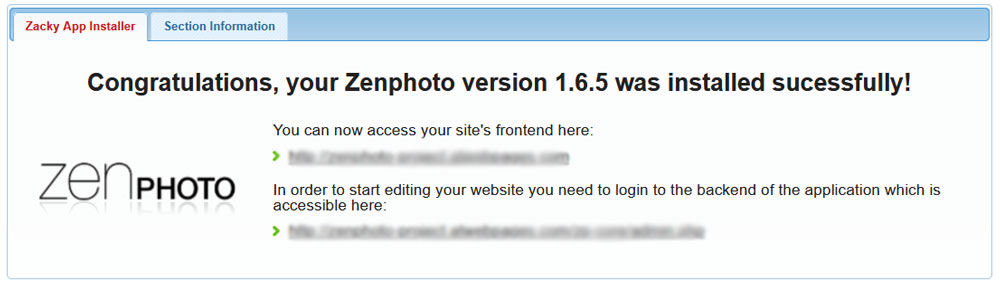
After the installation is complete, AwardSpace will send an email to the address you selected when choosing credentials.
Save and read the email thoroughly, as it contains important information about your AwardSpace account and login details for your Zenphoto project. It is advisable to save this email for future reference.
Now, you have managed to install Zenphoto successfully.