

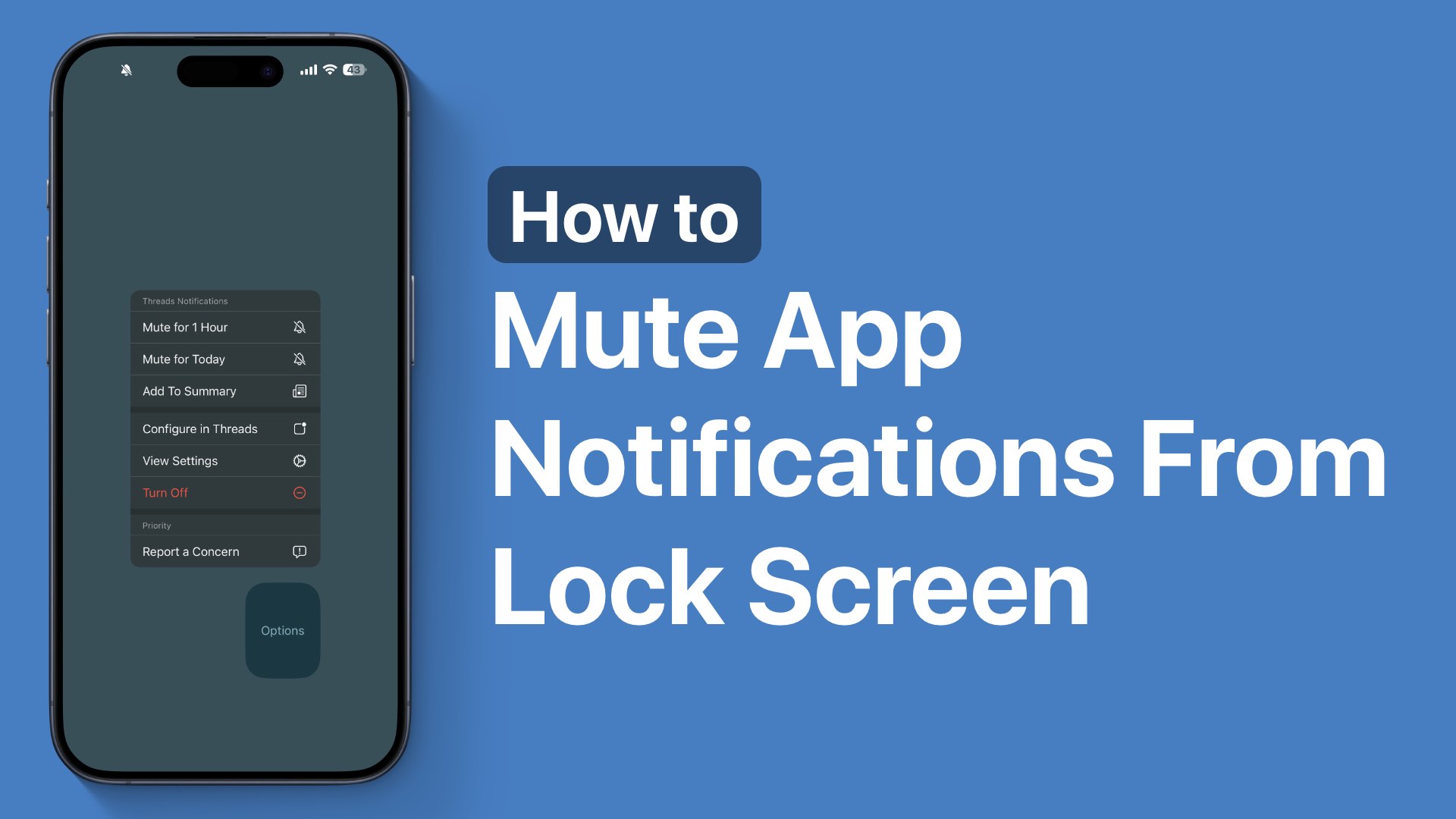
In this guide, we have shared detailed instructions on how to mute notifications from a particular app or a contact on iPhone right from the lock screen.
iOS has a useful feature that lets you quickly mute a particular app’s alerts temporarily without stopping other apps from sending notifications. You can also mute Messages app notifications for a specific contact without disturbing alerts from others.
This feature is super useful in situations where you are constantly getting alerts from an app, and you no longer wish to be disturbed by it.
Mute notifications from Lock Screen
To mute an app’s notifications, simply find its alert on the lock screen and swipe left on its notification.
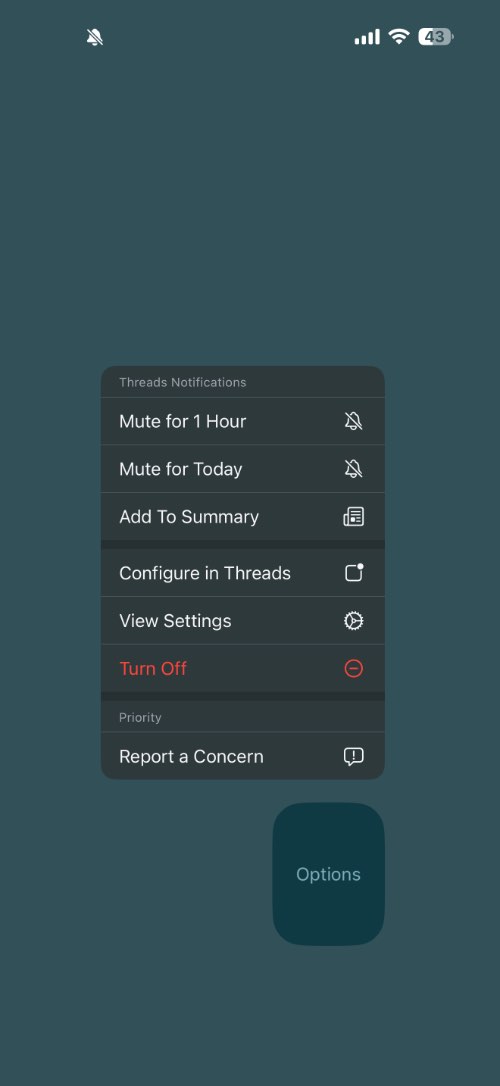
When you do this, you will get access to the Options button, tap on it.
On the options menu, you will get options that will let you ‘Mute for 1 Hour‘ or ‘Mute for Today‘.
If the notification belongs to the Messages app, then you will get the ability to mute the notifications for a particular contact, so you can only mute alerts from that person and not for the whole Messages app.
Unmute alerts
If you wish to unmute notifications after some time, then you can repeat these steps. Just swipe left on the alert, tap on options, and then select the Unmute option.