

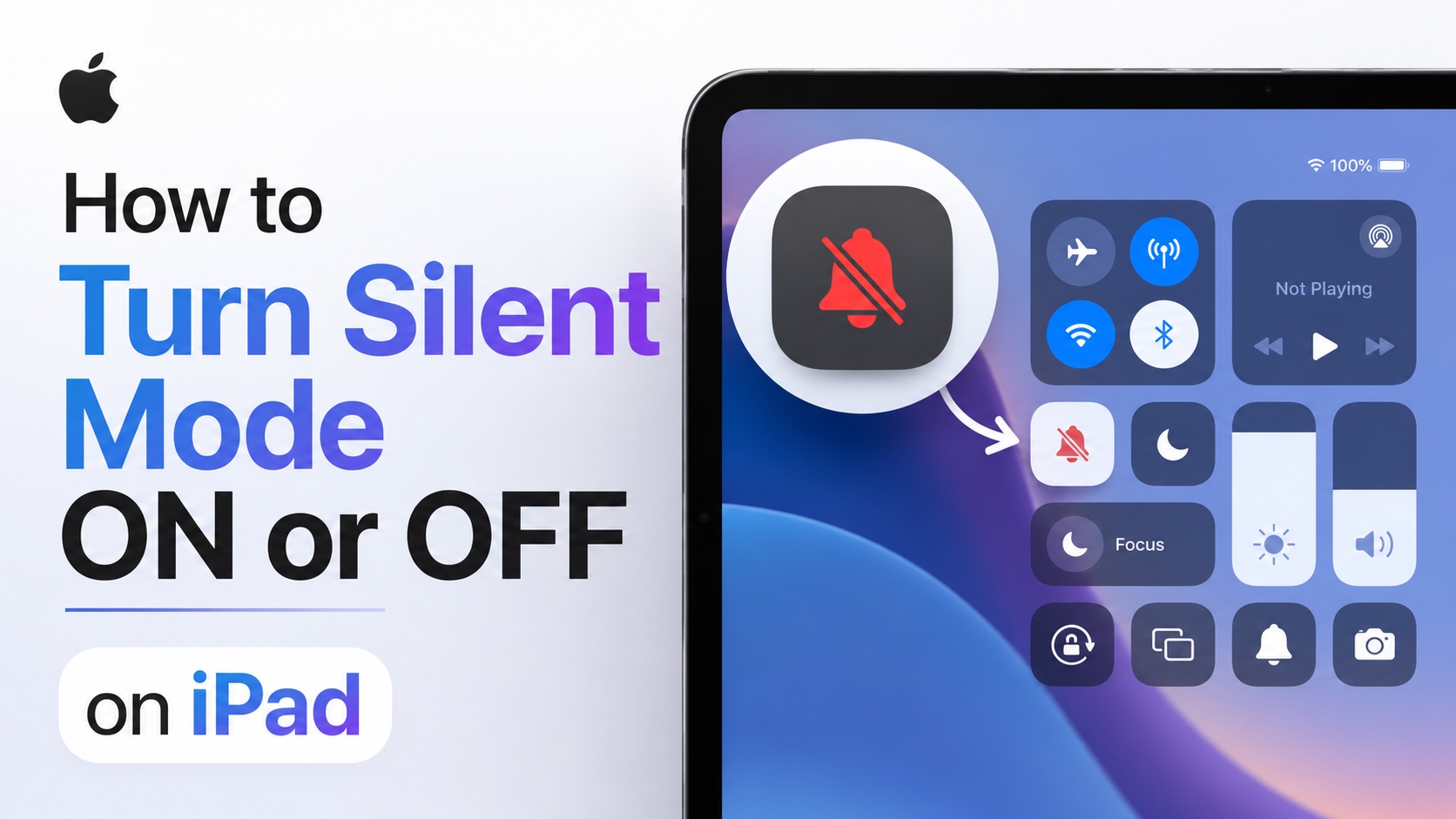
Are you concerned that your iPad is not making sounds or you want to silence your iPad during meetings, classes or while watching content. In this guide, we show you how you can turn Silent Mode on or off on your iPad.
Toggle Silent Mode on iPad
Method 1: Use Control Center

The fastest and easiest way to turn on or turn off Silent mode on iPad is through the Control Center. Here’s how you can do it.
- Swipe down from the top right corner.
- On the Control Center screen look for the bell icon.
- Tap on the bell once to turn Silent Mode On. The bell will turn red.
- Tap on the bell icon once more to turn Silent mode off.
When Silent Mode is enabled, notification sounds, alerts, and incoming FaceTime ringtones will be muted, although alarms will still sound.
Method 2: Use Settings app
You can also enable or disable the Silent mode from the Settings app. Here’s how to do it.
- Open the Settings app.
- Go to Sounds section from the side pane.
- At the top enable or disable the Silent mode toggle.
Remember, Silent mode on iPad does not mute alarms, media playback, and phone and FaceTime audio when you answer a call.
If you want complete silence, lower your media volume using the volume buttons or Control Center.