


This trading bot operates on the M15 timeframe, so you need to switch all the quote windows you have opened to the M15 timeframe. Double-check that all windows are switched to M15. Because users are usually inattentive!
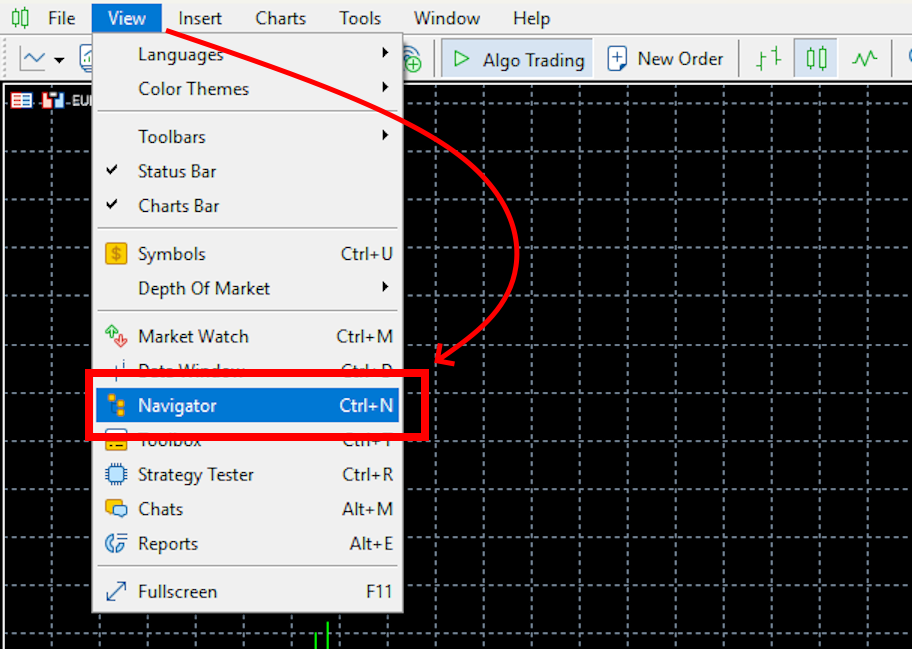
5 – Installing the advisor on the quote chart
Drag the PIPS HUNTER EA onto one of the open quote chart windows:

7 – Apply the configuration set files
Please note that the PIPS HUNTER EA must be configured separately for each asset on which it will trade. I have prepared special set files for this purpose.
If you have not downloaded the configuration set files, please scroll up to the top of these instructions and find the download link. Unzip the archive with the set files. It is a regular ZIP archive.
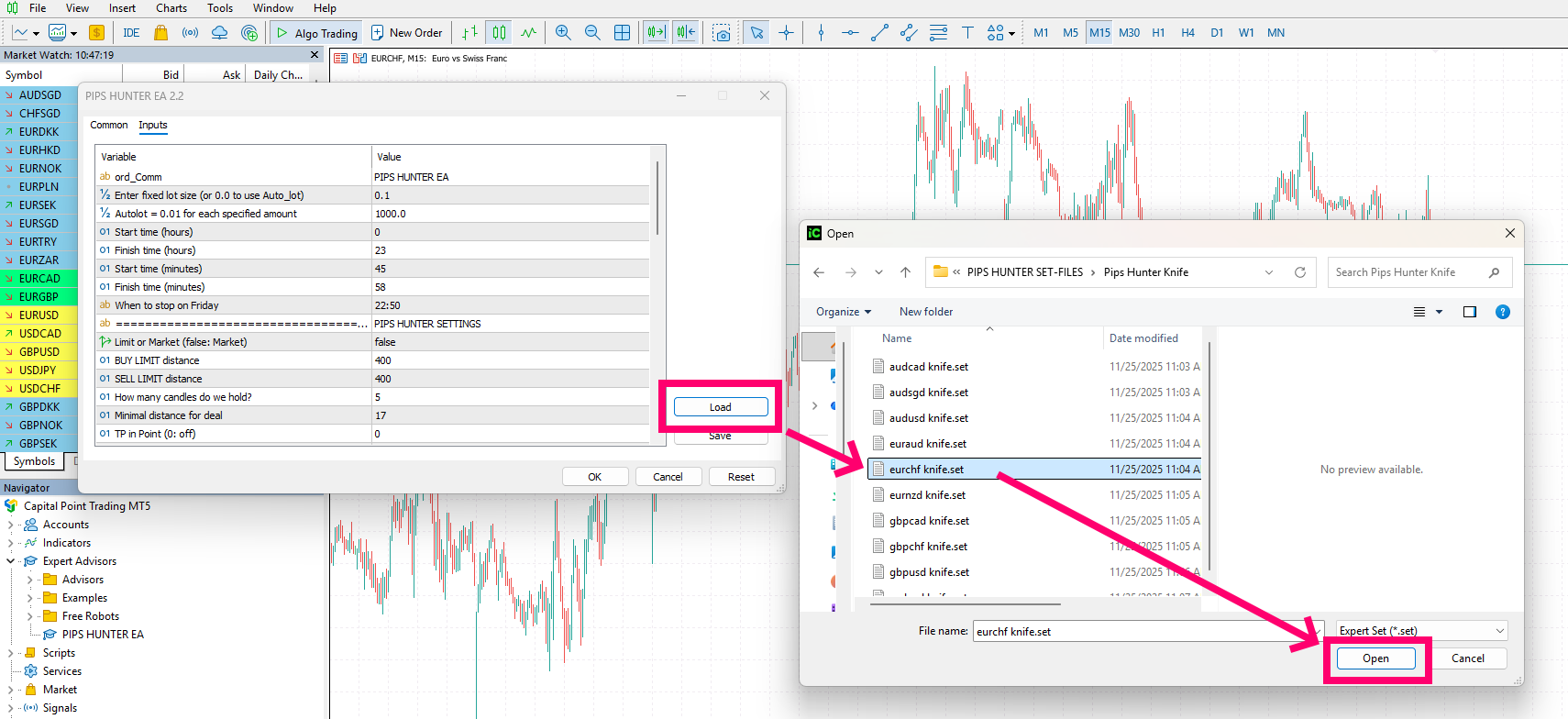
So, after applying the advisor to the quote chart, a configuration window will automatically open. To apply the set file, you need to click on the “Load” button:

Therefore, apply the PIPS HUNTER EA to all windows of recommended assets.
Using your PC’s internal navigation, find the folder with the configuration set files. In this folder, select the set file whose name corresponds to the name of the asset you are configuring:
Therefore, apply the PIPS HUNTER EA to all windows of recommended assets.
8 – Money management
PIPS HUNTER EA can use an automatic money management algorithm or trade with a fixed lot size.
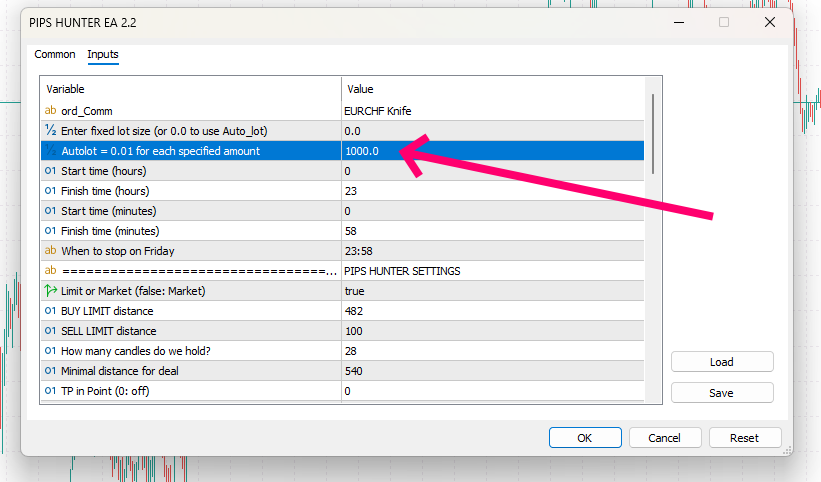
By default, the advisor uses an automatic money management algorithm with an Medium risk level. To change the risk level, go to the advisor’s manual settings and change the value for the “Autolot” variable:
Set, for example, a value of 1000. Such a variable size means that the advisor will use a lot size of 0.01 for every 1000 units of deposit. If you have a deposit size of 5000, the advisor will trade with a lot size of 0.05:
9 – Risk management for Prop Firms trading
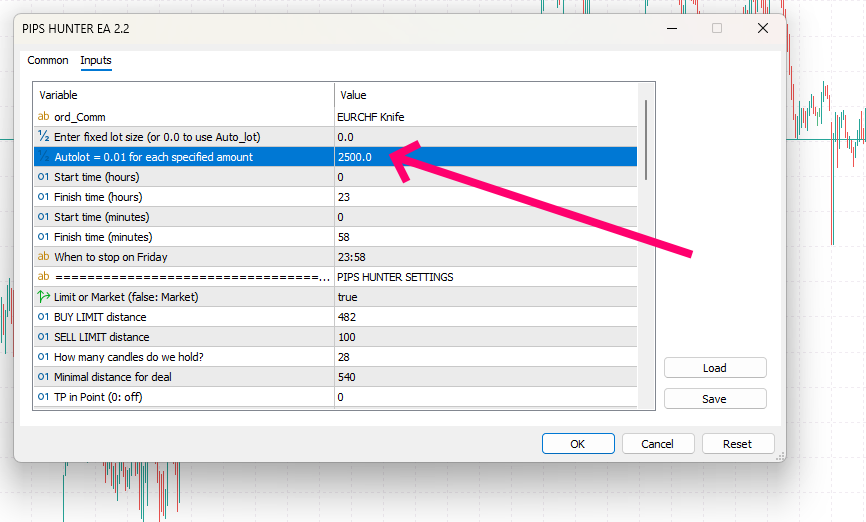
If you want to use Pips Hunter EA for Prop Firm trading, then set the value of the variable “Autolot” to “2500”. This risk level will allow you to trade with a maximum drawdown of no more than 4%:
10 – Fixed lot trading
If you want to trade with a fixed lot size, simply enter its value for the “Enter Fixed Lot” variable. For example, if you want to trade with a fixed lot size of 0.1, enter this value for the specified variable: